Record speech
Capture a meeting, lecture, interview, or voice note in the app. Pause and resume the recording when needed.
Transcribe audio to text - AI
Productivity for iPhone and iPad
Record. Transcribe. Use the words.
Record speech or import audio files with Transcribe audio to text - AI. Choose the spoken language, review editable text, and export the finished transcript as TXT or PDF.
On-device transcription · 99+ transcription languages · iOS 26 or later
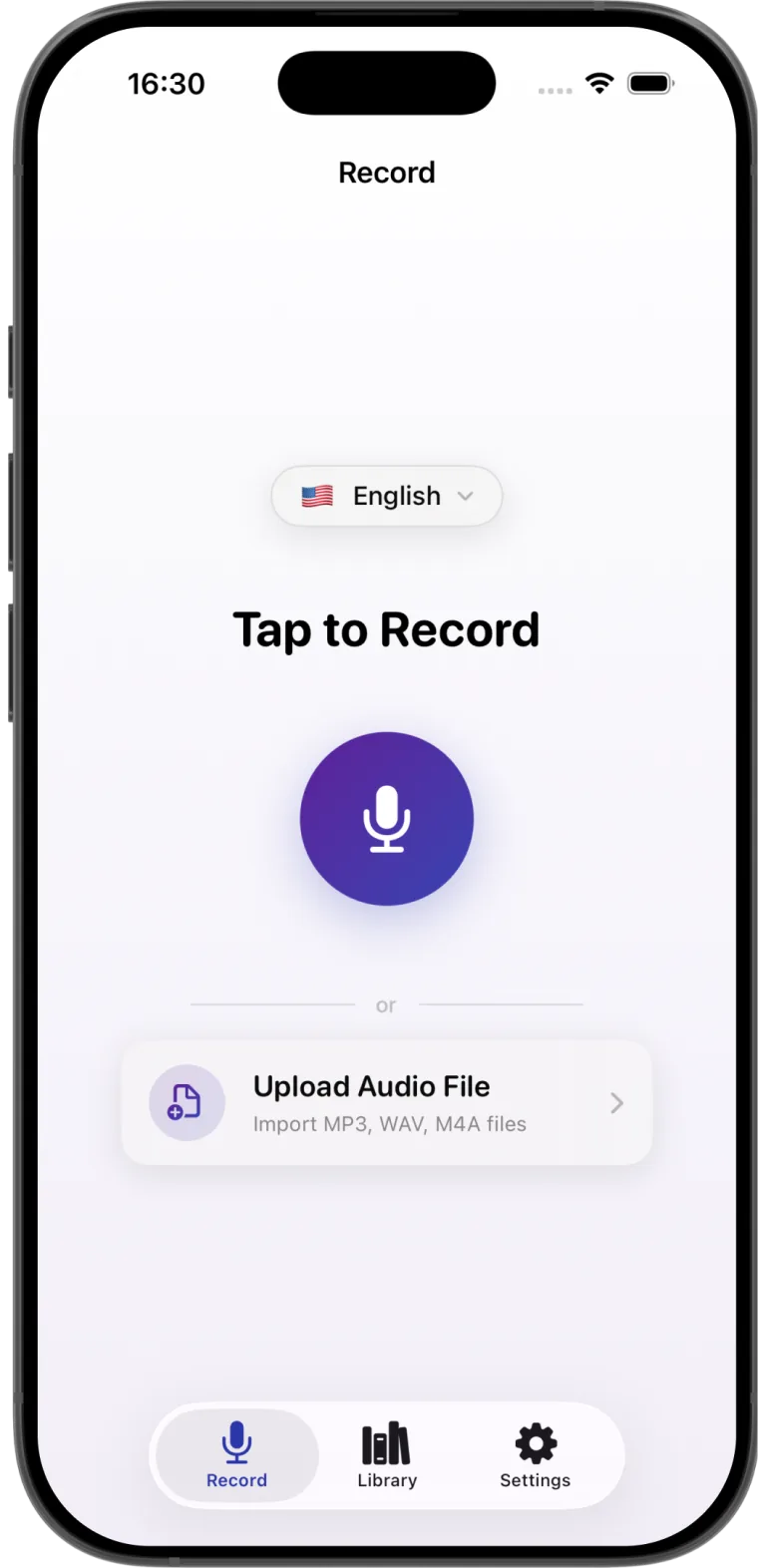
Capture a meeting, lecture, interview, or voice note in the app. Pause and resume the recording when needed.
Choose an existing MP3, WAV, or M4A audio file from Files.
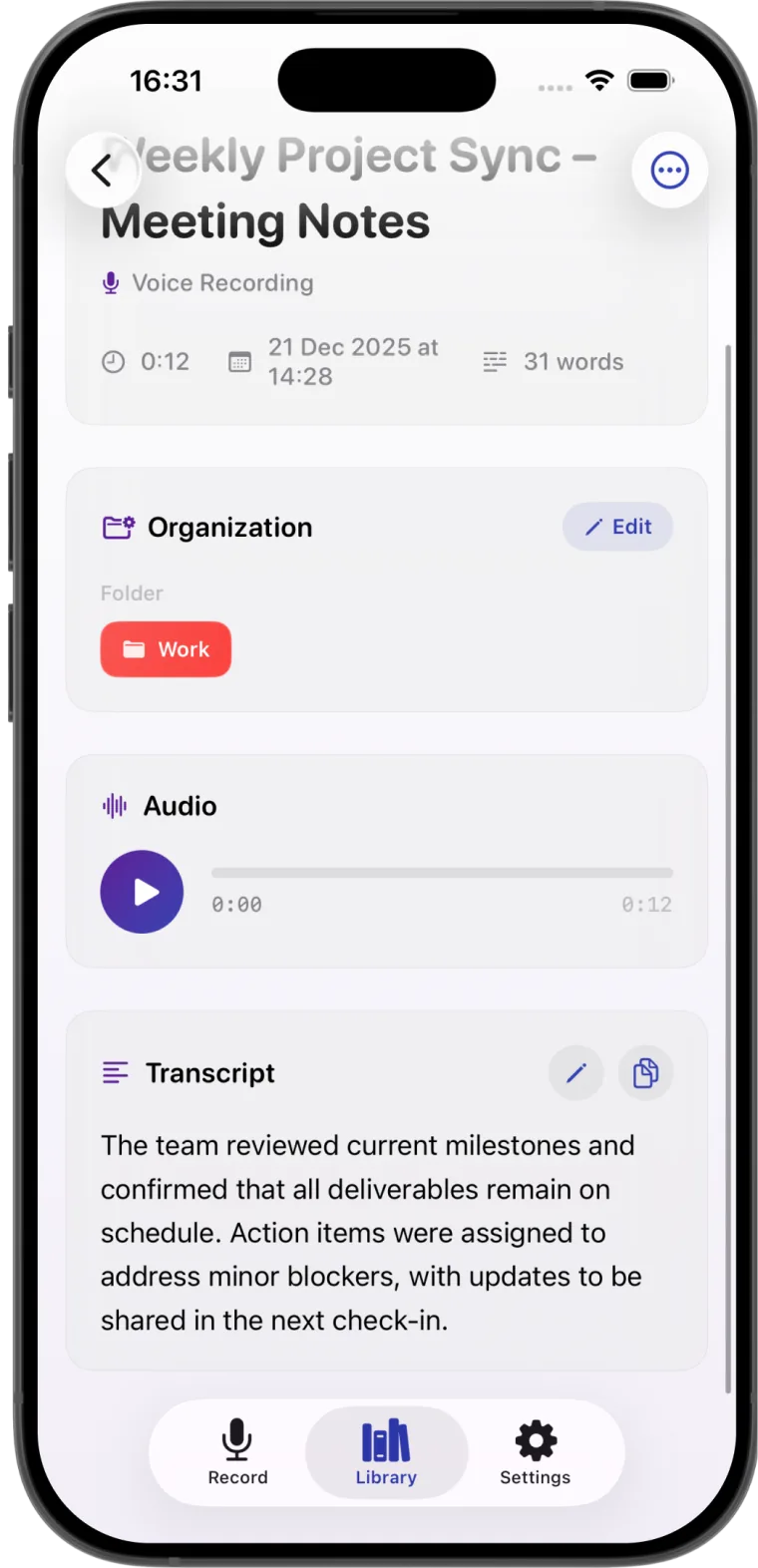
Play back the audio beside the transcript, correct the wording, and save it to your library.
One clear workflow
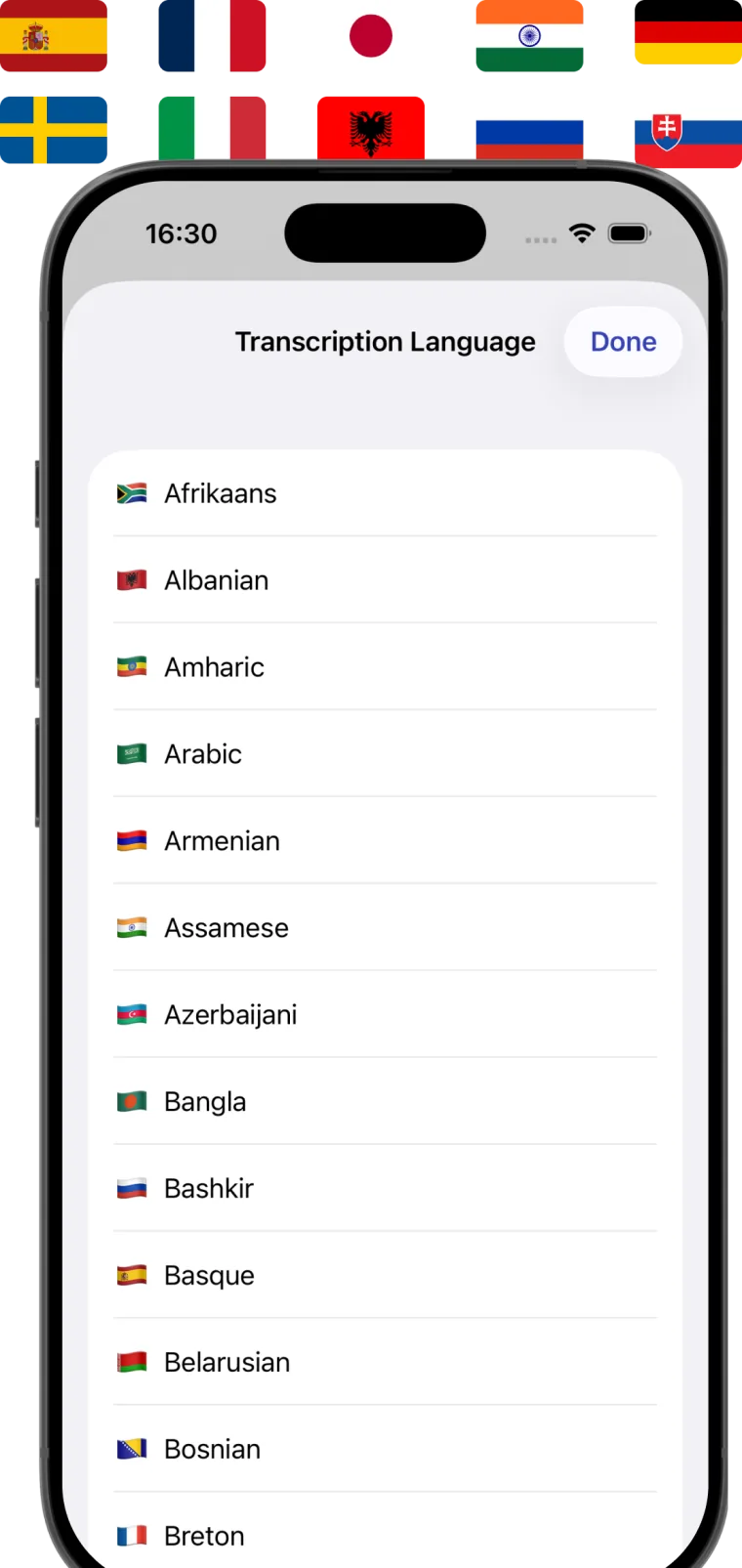
Set the language before recording or importing. After transcription, use the saved audio to check names, technical terms, and important decisions. Edit the text before you share it.
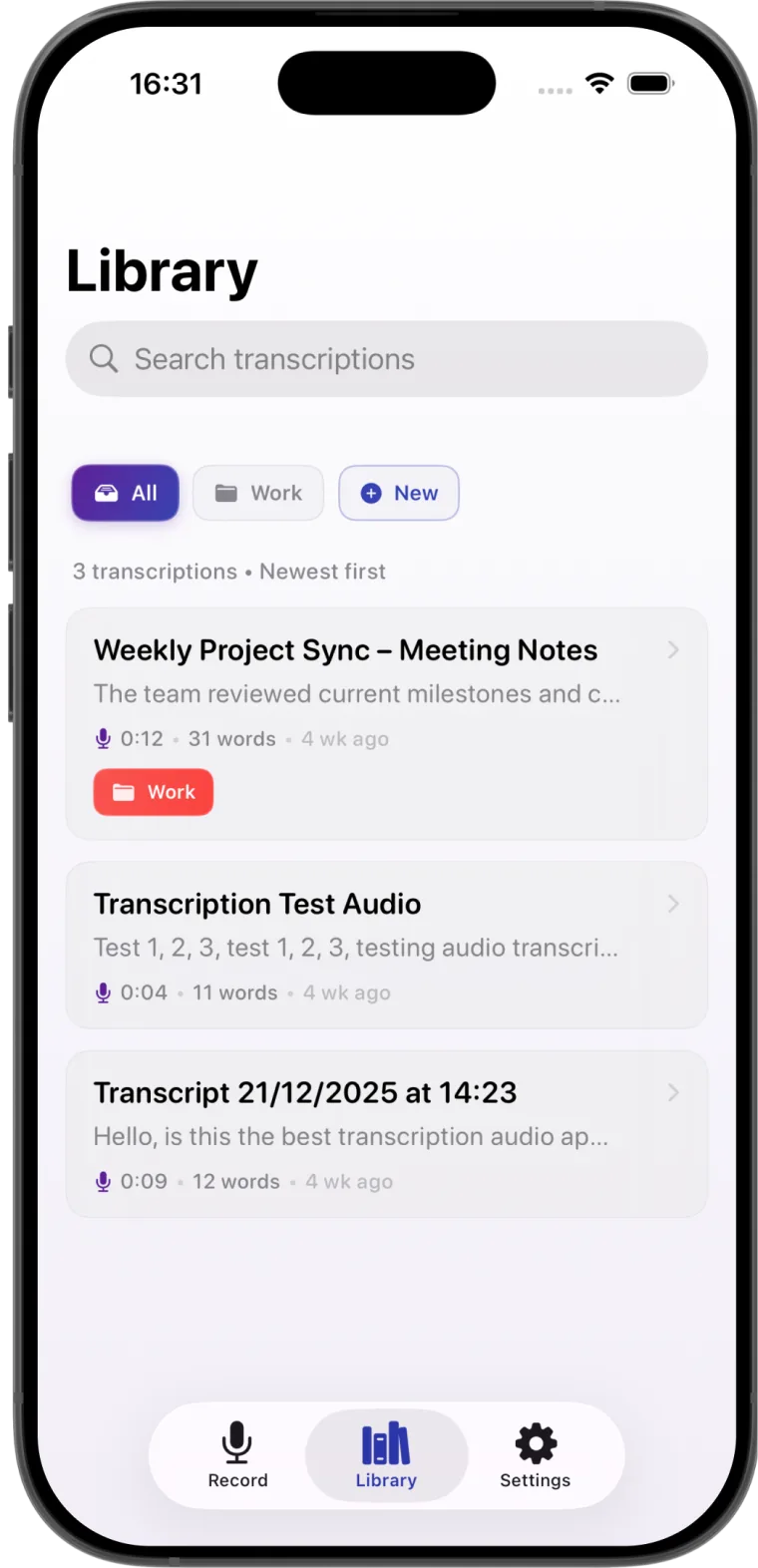
Find it again
Search saved transcripts and arrange them in folders. Each item keeps a text preview and recording information so you can return to the right conversation without sorting through unrelated files.
Useful for recurring meetings, class notes, interviews, and personal voice notes.
Several files, one session
Import multiple audio files, arrange their order, and choose separate transcripts for each file or one merged transcript. Check the selected files and total duration before starting.
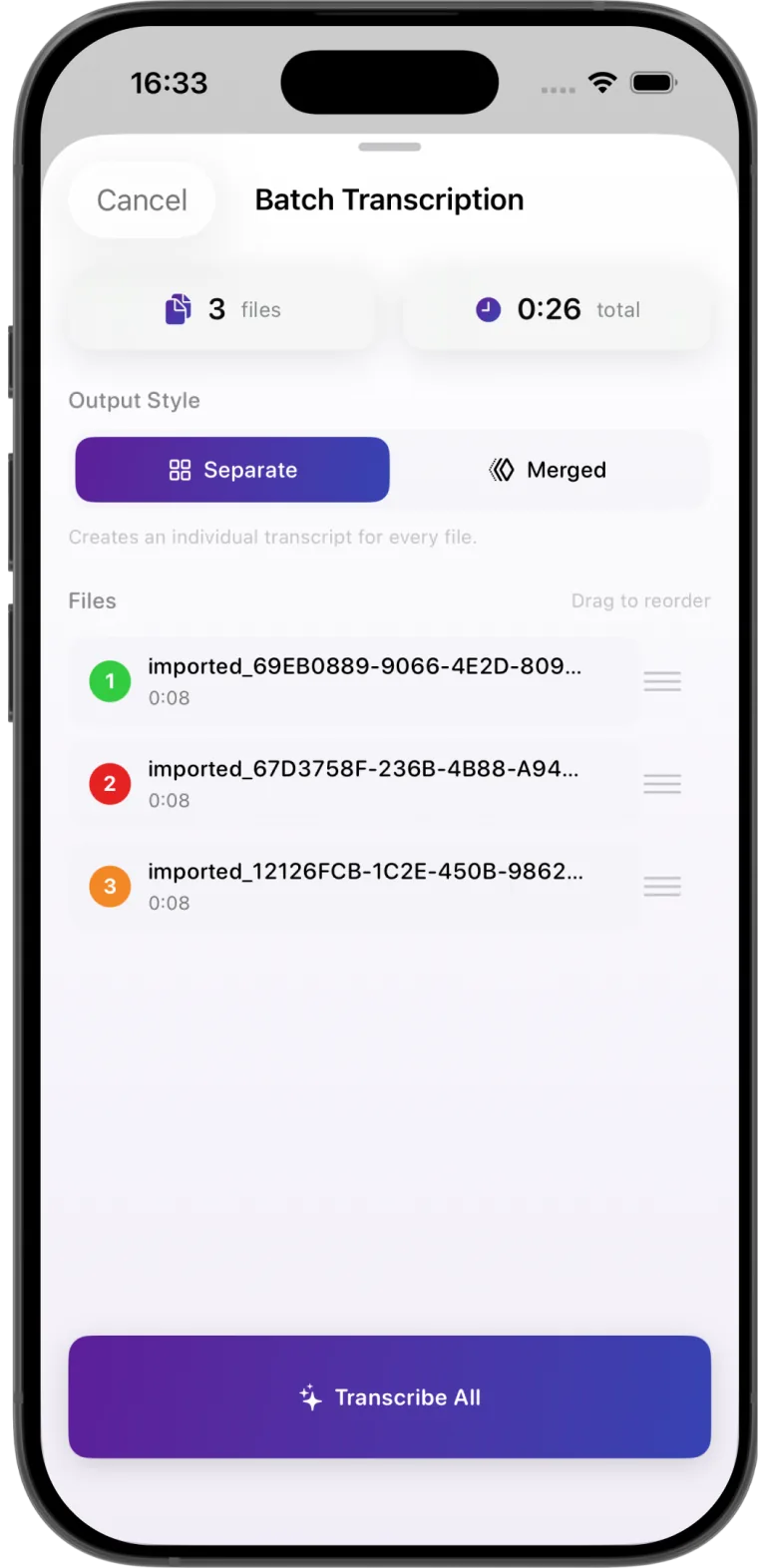
Before you start
The current App Store listing says transcription runs fully on the device. Its privacy label says the developer does not collect data from this app. Review the official privacy policy for the full terms.
The Record screen lists MP3, WAV, and M4A files for import from Files. File availability and successful processing can depend on the recording and device.
Yes. The App Store listing describes editable transcripts. Listen to the saved audio and review proper names, numbers, and specialist vocabulary before relying on the text.
Yes. Batch transcription lets you process several imported files and choose separate or merged output.
The App Store lists iPhone with iOS 26 or later and iPad with iPadOS 26 or later. It also lists Apple silicon Macs with macOS 26 or later and Apple Vision with visionOS 26 or later; Apple has not verified the iPhone and iPad app for macOS.
Practical guide
4 min read
Record speech or import an audio file, choose its language, review the transcript, then export editable text or a PDF on iPhone.
Read guideRecord, transcribe, organize, and export on iPhone and iPad.