How to transcribe audio to text on iPhone
Record speech or import an audio file, choose its language, review the transcript, then export editable text or a PDF on iPhone.
To transcribe audio to text on iPhone, choose the spoken language, record in a transcription app or import an existing audio file, then check the resulting text against the recording. Correct important details before copying, sharing, or exporting it.
Choose between a new recording and an existing file
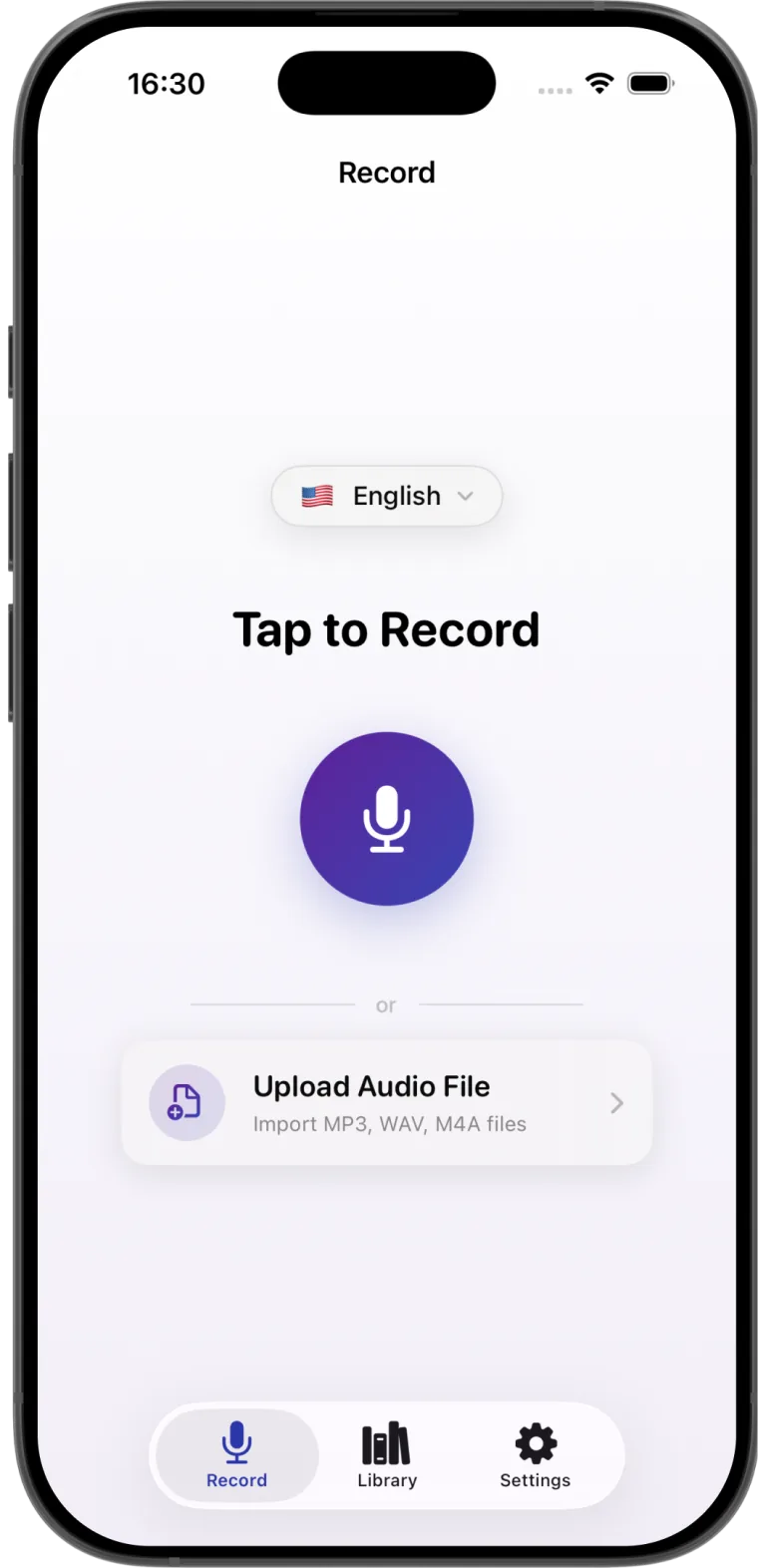
If the conversation has not happened yet, open Transcribe audio to text - AI and use its Record screen. You can pause and resume while recording. For audio you already have, choose Upload Audio File to import it from Files. The import option lists MP3, WAV, and M4A files.
Before importing, check that the file plays normally and contains the section you need. A clear source recording gives you a more useful transcript than a quiet, clipped, or heavily noisy file.
Select the language that is actually spoken
Choose the recording language before transcription. The app lists more than 99 supported transcription languages, but the selected language still needs to match the audio. A mismatch can produce plausible looking words that do not reflect what was said.
If a recording switches between languages, review the output especially carefully. Language availability does not guarantee that every accent, dialect, mixed-language sentence, or specialist term will be recognized correctly.
Make the audio easier to understand
- Move the iPhone close enough to hear each speaker without covering the microphone.
- Reduce background noise where practical and ask speakers to take turns.
- Say unfamiliar names and technical terms clearly.
- For an imported recording, listen to a short sample first so you know its language and quality.
Transcription turns audible speech into a draft. It cannot recover words that were masked by noise or never captured by the microphone.
Review the transcript with the audio
The transcript detail screen keeps audio playback beside the text. Play the recording while checking proper names, dates, quantities, decisions, and action items. Edit the words before treating the transcript as a record of the conversation.
For meeting notes, read the text once for overall meaning, then replay the sentences that carry commitments or figures. This is faster than checking every word equally and helps catch the errors that matter most.
Organize and export the finished text
Save the reviewed transcript to the app library, where you can search it and group it in a folder. The App Store listing says you can export as TXT or PDF and share transcripts. Use TXT when the recipient needs editable text. Use PDF when you want a document that is easier to read or file without changing its layout.
If you have several recordings from one event, batch transcription can process multiple files. Choose separate transcripts for each file or a merged result. Check file order before merging, then review transitions between recordings in the final text.
Privacy and device compatibility
The current App Store listing for Transcribe audio to text - AI says transcription runs fully on the device and that the developer does not collect data from the app. Read the privacy summary and official policy link for more detail.
The listing requires iOS 26 or later on iPhone and iPadOS 26 or later on iPad. It also lists compatibility for Apple silicon Macs with macOS 26 and Apple Vision with visionOS 26, although Apple says the iPhone and iPad app has not been verified for macOS. Check the current listing for your device before downloading.
Quick transcription checklist
- Choose the spoken language.
- Record speech or import an audio file from Files.
- Transcribe and listen back to important sections.
- Correct names, numbers, and unclear wording.
- Save the transcript in a folder, then share or export TXT or PDF.
Transcribe audio to text - AI brings recording, importing, on-device transcription, editing, folders, batch processing, and export into one iPhone and iPad workflow.